


Office 365, Outlook 2016, Outlook 2013, Outlook 2010, Outlook 2007
There are several reasons why you might want to import Outlook items from an Outlook Data File (.pst).
You want to move Outlook items from one email account to another email account
You want to move Outlook items from one PC to another PC
You want to move Outlook items from PC to Mac or Mac to PC
You want to move Outlook items between local folders and an IMAP server.
These instructions assume you've already exported your Outlook email, contacts, and calendar from another instance of Outlook, and now you want to import them to Outlook.
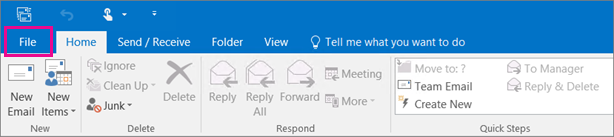
At the top of your Outlook ribbon, select File.
If your ribbon doesn't have a File option in the top left corner, you aren't using an Outlook app installed on your computer.
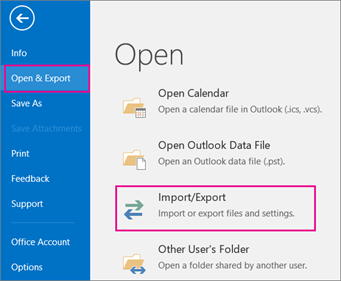
Select Open & Export > Import/Export. This starts the Import/Export wizard.
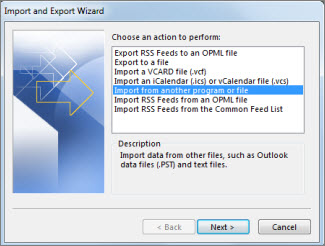
Select Import from another program or file, and then click Next.
Select Outlook Data File (.pst) and click Next.
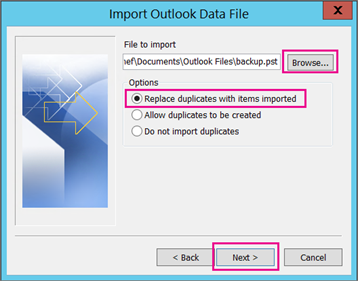
Browse to the .pst file you want to import. Under Options, choose how you want to deal with emails and contacts, then choose Next.
If a password was assigned to the Outlook Data File (.pst), enter the password, and then click OK.
If you're importing the contents of your .pst file into your Microsoft 365 mailbox, choose that mailbox here.
If you're NOT importing into your Microsoft 365 mailbox, choose Import items into the current folder. This imports the data into the folder currently selected.
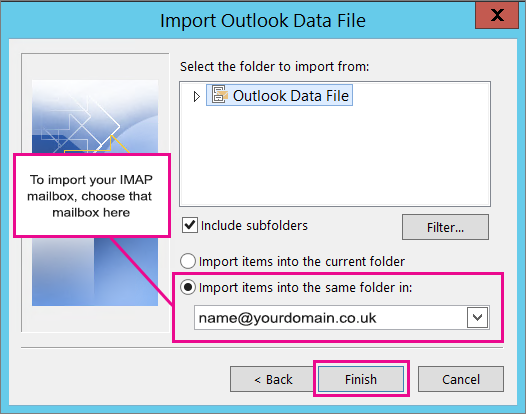
Choose Finish. Outlook starts importing the contents of your .pst file immediately. When the progress box disappears, the import is finished.
If you want to retrieve only a few emails or contacts from an Outlook Data File (.pst), you can open the Outlook Data File, and then, in the navigation pane, drag and drop the emails and contacts from .pst file to your existing Outlook folders.
Select File > Open & Export > Open Outlook Data File.
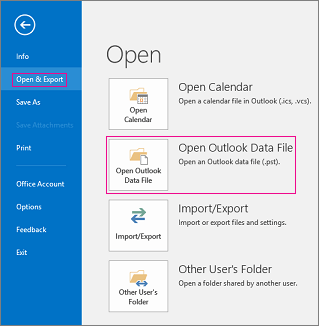
Note: Depending on how Outlook is set up, it's likely the folder where the .pst file is stored will open automatically. If it doesn't, browse to the file's location. If you're not sure where your Outlook data file is located, then depending on your version of Outlook, your version of Windows, and how you set up your account or created the .pst file. You can find your .pst file in one of the following locations:
Windows 10 drive:\Users\<username>\AppData\Local\Microsoft\Outlook
Windows 10 drive:\Users\<username>\Roaming\Local\Microsoft\Outlook
Older versions of Windows drive:\Documents and Settings\<username>\Local Settings\Application Data\Microsoft\Outlook
Select the Outlook Data File (.pst), and then select Open.
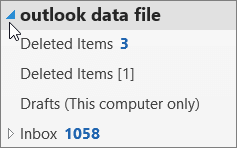
Once you open the Outlook Data File (.pst), the file will appear in your folder pane. Usually you'll find it at the bottom of the list of folders. The following image is an example. The name of your Outlook Data File (.pst) will likely not be outlook data file. Usually, the name is based on the account the file is associated with. For example, an Outlook Data File for the account yourname@yourdomain.co.uk will likely be named Your Name or yourname@yourdomain.co.uk.
.Pst files are created when you export or back up email, contacts, and calendar to an Outlook .pst file. Outlook makes a copy of your email to the .pst file.
When Outlook exports emails to a .pst file, it includes any attachments. So, when you import a .pst file, you'll see your attachments.
Outlook does not export meta-data such as folder properties ( views, permissions, and AutoArchive settings); message rules; and blocked senders lists. So, they won't be imported, either.
When Outlook exports email, contacts, and calendar info to a .pst, it makes a copy of the information. Nothing is deleted from Outlook. You'll still see and have access to your email, contacts, and calendar in Outlook.