


Outlook for Microsoft 365, Outlook 2021, Outlook 2019, Outlook 2016, Outlook 2013
IMAP servers automatically archive your email so that you can access it anytime or anywhere, but if you want to back up the message folders locally (in addition to keeping them on the server), you can do this by exporting the items to a .pst file that you can restore later as needed.
See importing Import email, contacts, and calendar from an Outlook .pst file instructions to import a file.
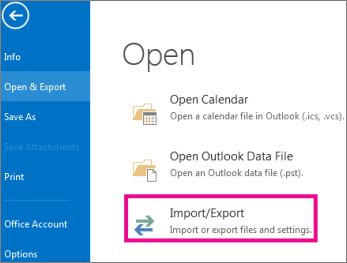
Select File > Open & Export > Import/Export.
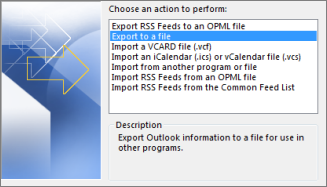
Select Export to a file, and then select Next.
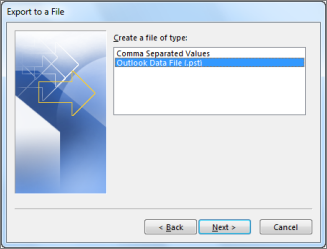
Select Outlook Data File (.pst), and select Next.
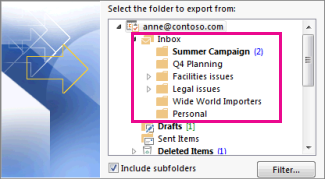
Select the mail folder you want to back up and select Next.
Choose a location and name for your backup file, and then select Finish.
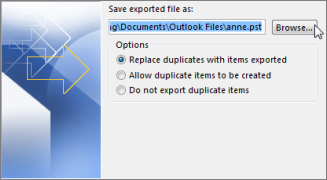
If you want to ensure no one has access to your files, enter and confirm a password, and then select OK.
The messages that you keep in a .pst file are no different from other messages. You can forward, reply, or search through the stored messages as you do with other messages.