


We make use of 'autodiscover' technology, so that in the majority of cases, Thunderbird can set up your account for you with only your email address and your password.
We always recommend IMAP as the connection to the email server. This helps keep messages in sync between various devices and the email system.
Automatic Setup
 and select Account Settings from the sub-menu.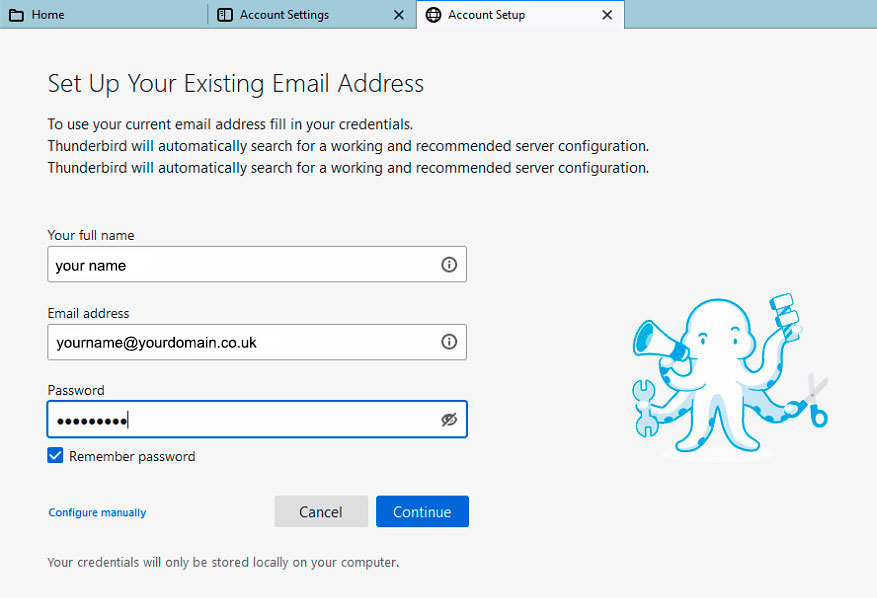
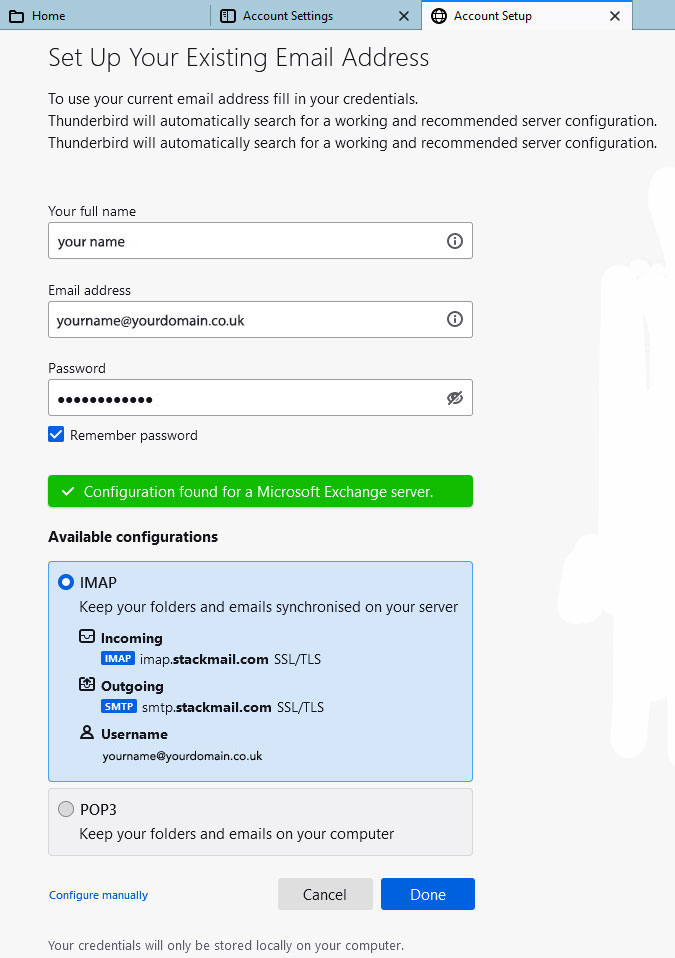
Account type: IMAP
Incoming Server ("Account Settings" > "Server Settings")
Server Name: imap.stackmail.com
Username: Your full email address
Port: 993
Connection security: SSL/TLS
Authentication method: 'Normal password'
Outgoing Server (SMTP)
Server Name: smtp.stackmail.com
Port: 465
Connection Security: SSL/TLS
Authentication method: 'Normal password'
Username: Your full email address
If you wish to use the POP3 as your connection then please use the following settings:
Account type: POP3
Incoming Server ("Account Settings" > "Server Settings")
Server Name: pop3.stackmail.com
Username: Your full email address
Port: 995
Connection security: SSL/TLS
Authentication method: 'Normal password'
Outgoing Server (SMTP)
Server Name: smtp.stackmail.com
Port: 465
Connection Security: SSL/TLS
Authentication method: 'Normal password'
Username: Your full email address