
Setting up your email account in Microsoft Outlook 2010

Open Microsoft Office Outlook 2010. If you have just installed Outlook 2010 it will show in your Start Menu.

Click Start Menu > All Programs > Microsoft Office > Microsoft Office Outlook 2010.

If this is the first time you have opened Outlook 2010 then the Startup wizard will show. Click Next.
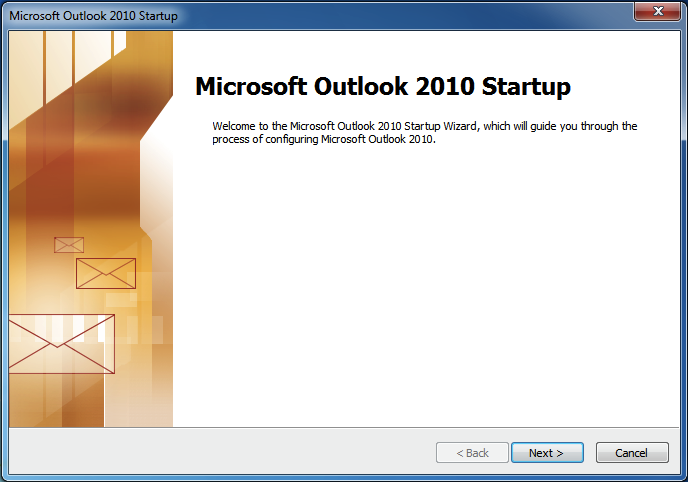
Outlook 2010 Startup Wizard

If the Setup Wizard does not show then click the File menu and click Add Account.
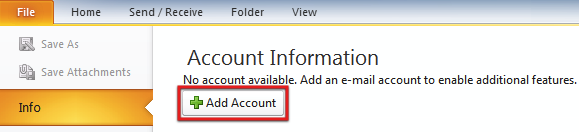
Add new e-mail account button in Outlook 2010

Outlook will ask if you wish to configure an email account. Select Yes and click Next.
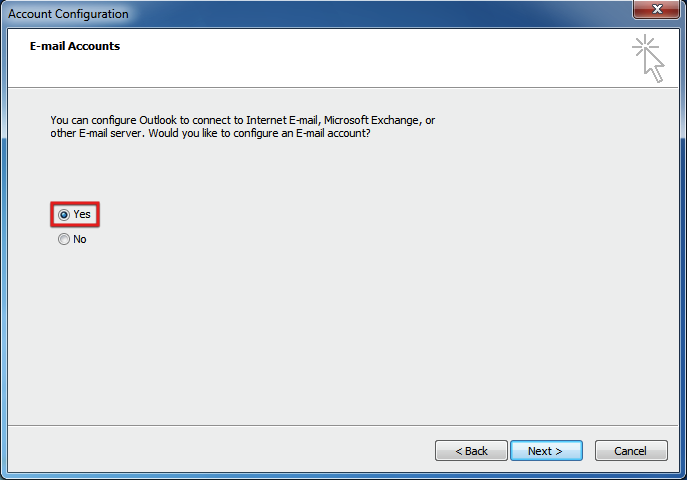
Configure Email Account - Outlook 2010

Select Manually configure server settings or additional server types.

Then click Next
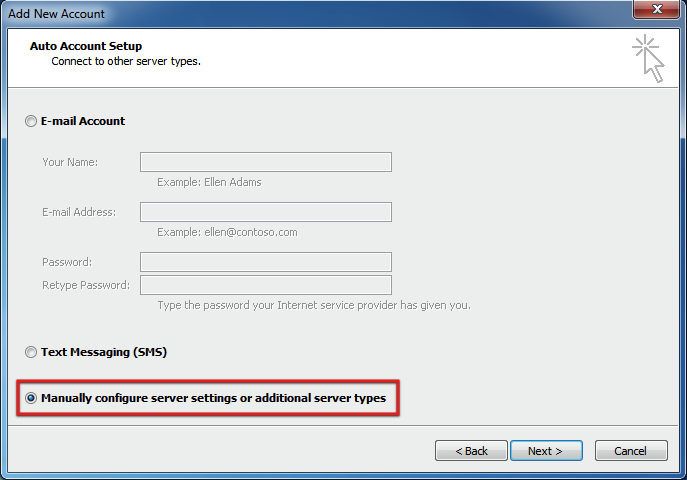
Add E-mail Account Outlook 2010

Outlook will prompt you to choose your E-mail Service. Select Internet E-mail.

Then click Next.
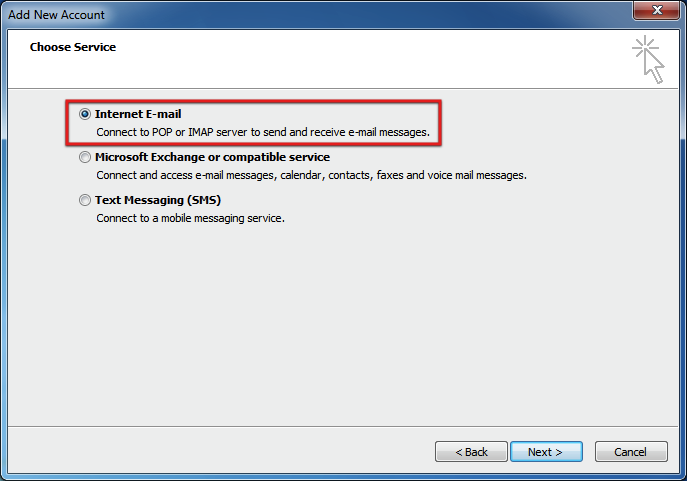
Internet Email Outlook 2010

You will now be asked to enter your email account details.
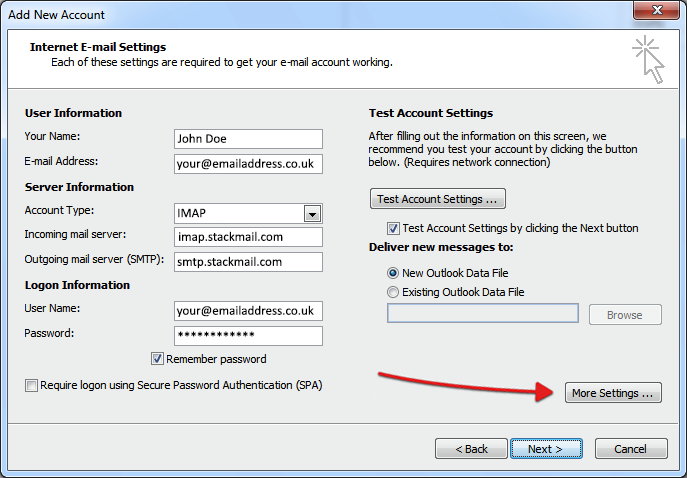
  • Enter your name
  • Enter your email address. For example, your@emailaddress.co.uk
  • Account Type choose from the following options either IMAP or POP3
  • We recommend using IMAP as your account type, this will allow you to get your emails on multiple devices like phones and tablets.
  • If you selected IMAP then please enter imap.stackmail.com as your Incoming Mail Server
  • If you selected POP3 then please enter pop3.stackmail.com as your Incoming Mail Server
  • Enter smtp.stackmail.com as your Outgoing Mail Server
  • For User Name, is always your full email address. For example: your@emailaddress.co.uk
  • Enter your email password which we have provided
POP3 Email Settings - Outlook 2010

Click More Settings.

Click the Outgoing Server tab

Please tick My outgoing server (SMTP) requires authentication and make ensure the following option is selected Use same settings as my incoming mail server
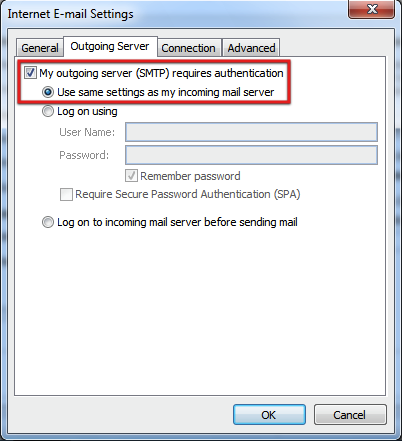
Outgoing Server Authentication Outlook 2010

Now click the Advanced tab

In this area ensure the following settings are as follows:
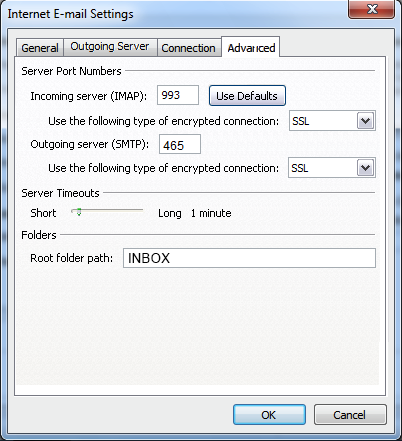
  • if you have selected the incoming mail server to be IMAP then please ensure that the Incoming server (IMAP) has the port number is 993
  • For the type of encryption please select SSL
  • if you have selected the incoming server to be POP3 then please ensure the Incoming server (POP3) has the port number is 995
  • For the type of encryption please select SSL
  • For the Outgoing Server (SMTP) setting please ensure the port number is 465
  • For the type of encryption please select SSL
Advanced server IMAP Outlook 2010

Then Click OK.

Click Next

Outlook will test your settings.

Click Close

Click Finish.
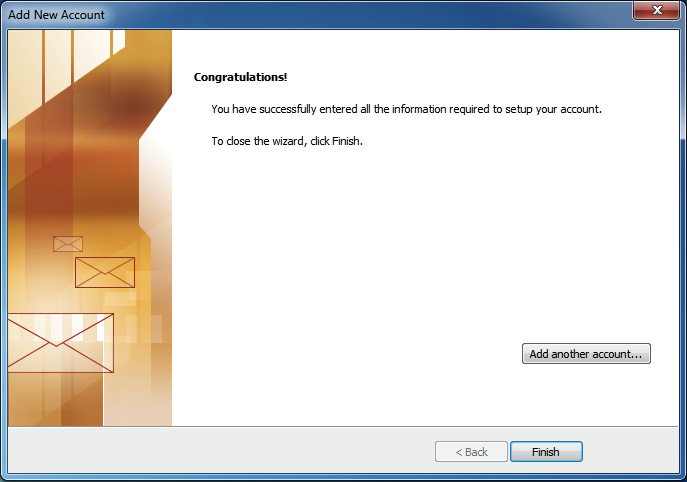
Account added successfully - Outlook 2010 success screen

You should now see your email account in the left-side menu.
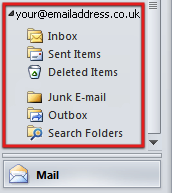
New POP3 Email Account in Outlook 2010

To check for new emails click on the Send/Receive tab on the menu bar, then click Send/Receive All Folders

Outlook 2010 will now connect to your email account and show you any emails in your in-box.
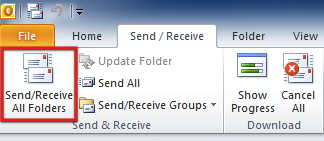
Send and receive in Outlook 2010

That's it, you are done.

Congratulations.

You have now configured Microsoft Outlook 2010 to send and receive emails.