


If this is not the first time you have used Mail and you already have an account setup in the program then view the alternate instructions for adding another email account.
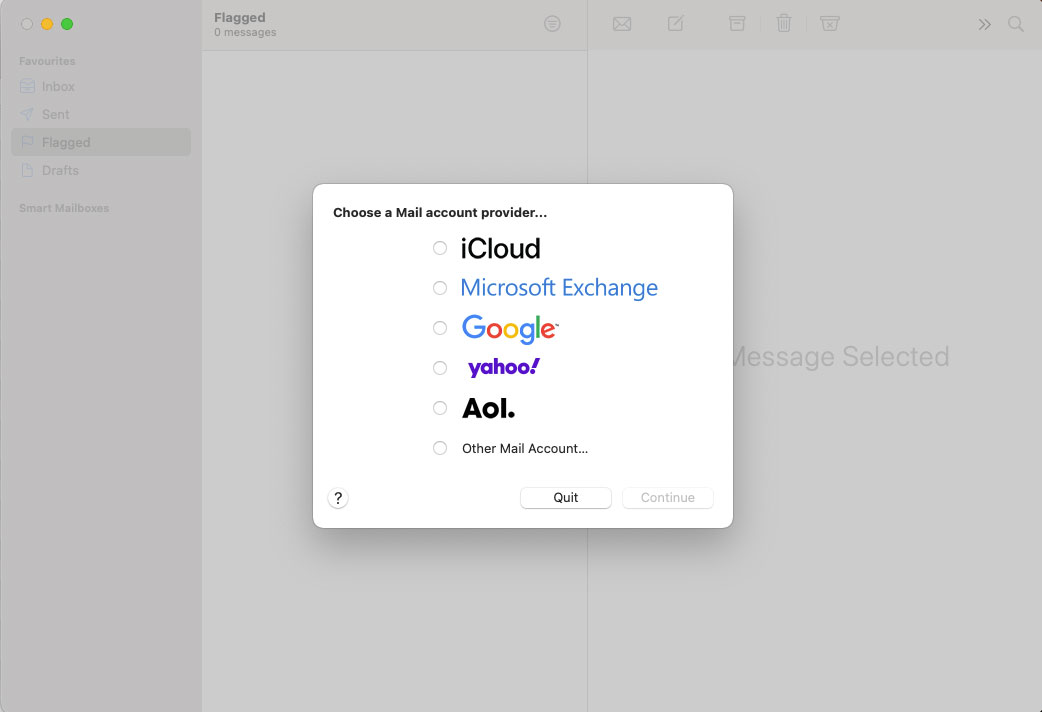
If this is the first time you have opened Apple Mail. You will be presented with the following screen.
Please select the last option 'Other Mail Account'
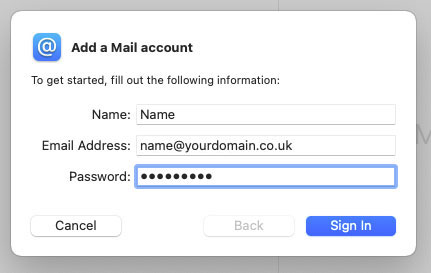
The next screen you will see, will ask you for your account details.
Your Name:
Email Address:
Password:
Enter these details and then click the 'Sign In' button
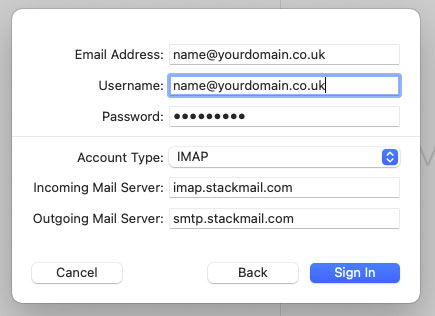
The next step will ask you for the following extra details.
Email Address: (Your full email address)
Username: (Your Username is always your full email address)
Password: (You will have been provided this)
Account Type: Select either IMAP or POP3 from the Account Type list
Depending which Account Type you selected you will need to use the following server settings.
Account Type IMAP
Incoming mail server: imap.stackmail.com
Outgoing mail server: smtp.stackmail.com
Account type: POP3
Incoming mail server: pop3.stackmail.com
Outgoing mail server: smtp.stackmail.com
Then click the 'Sign In' button
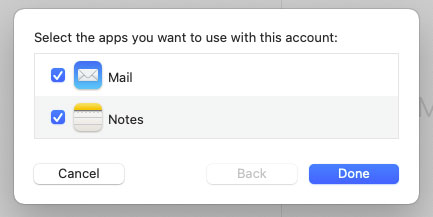
One you have signed in, you should see the following screen to confim that your email address has been added.
Select the apps you want to use with your email ccount
Click Done
After clicking done, you should be presented with the list of the folders in your email accout on the left hand side panel.
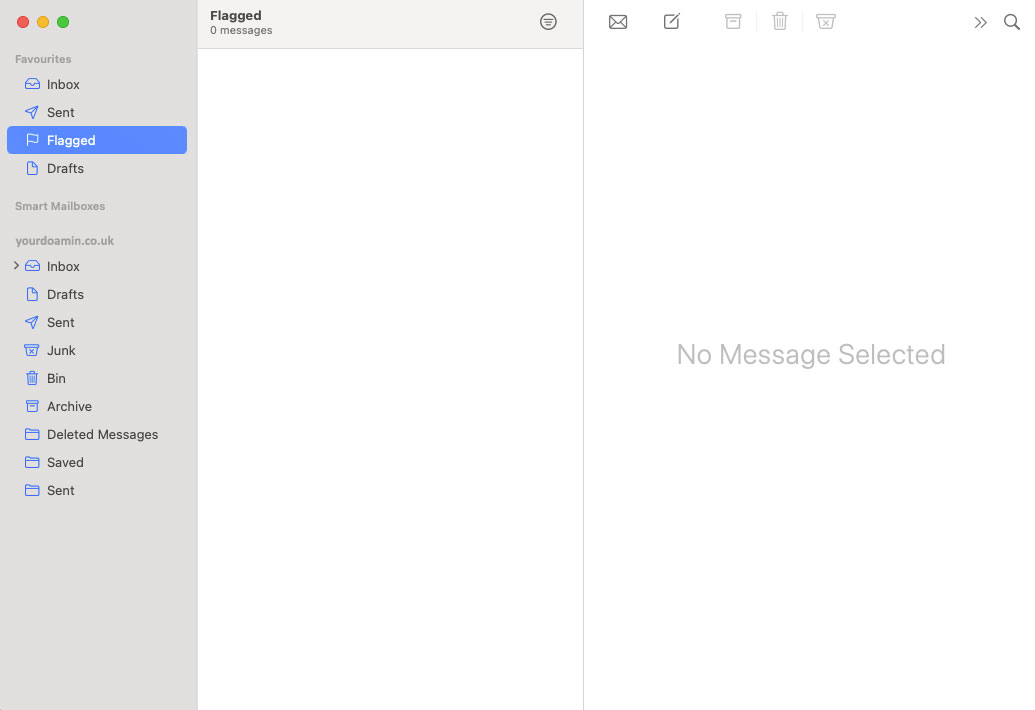
Congratulations. You've now configured Apple Mail to send and receive email.
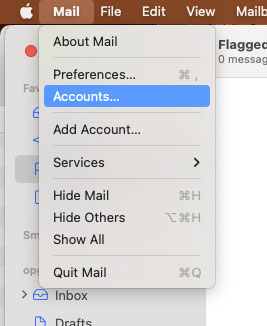
If this is not the first time you have used Mail and you already have an account setup in the program then to add another email account, click on the Mail menu and select Accounts.
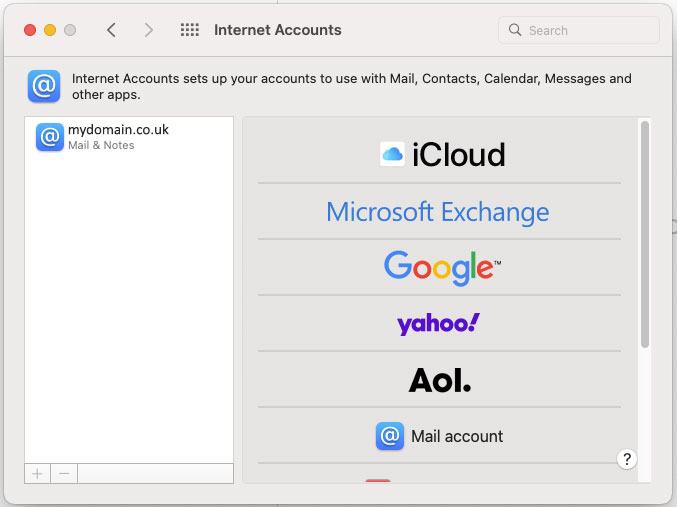
On the next screen select Mail account from the right hand list.
The next screen will ask you for the following account details.
Your Name:
Email Address:
Password:
Once you have entered your details click the 'Sign In' button
The next step will ask you for the following account details.
Email Address: (Your full email address)
Username: (Your Username is always your full email address)
Password: (You will have been provided this)
Account Type: Select either IMAP or POP3 from the Account Type list
Depending which Account Type you selected you will need to use the following server settings.
Account Type IMAP
Incoming mail server: imap.stackmail.com
Outgoing mail server: smtp.stackmail.com
Account type: POP3
Incoming mail server: pop3.stackmail.com
Outgoing mail server: smtp.stackmail.com
Then click the 'Sign In' button
One you have signed in, you should see the following screen to confim that your email address has been added.
Select the apps you want to use with your emaila ccount
Click Done
After clicking done, you should be presented with the list of the folders in your email accout on the left hand side panel.
Congratulations. You've now configured Apple Mail to send and receive email.