Setting up your email account on a Samsung Galaxy S3 Using IMAP
1. Main Screen
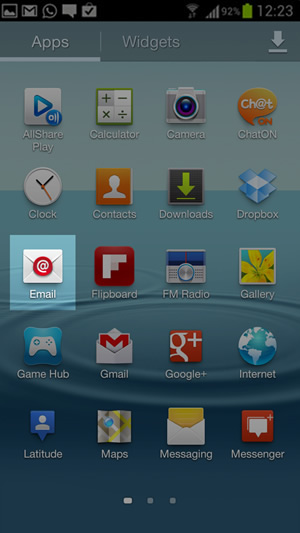
On the Main screen, Select email
2. Setup email (manual)
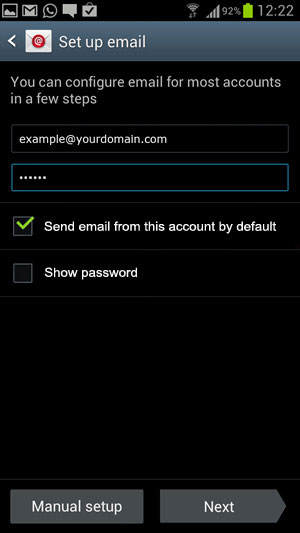
Enter your account information:
- Account name: Your Complete Email Address ie. example@yourdomain.co.uk
- Your Account Password: We will have already provided this to you
Select
Manual setup
3. Account type
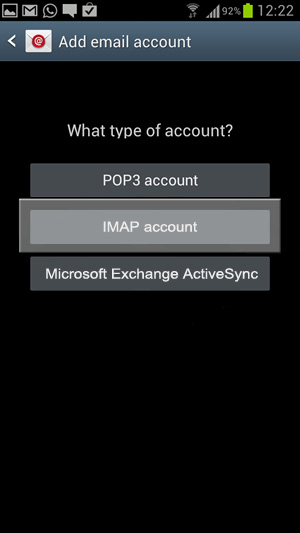
Select IMAP account
4. Incoming server settings (IMAP)
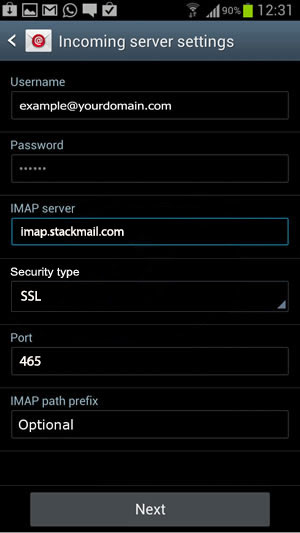
The incoming mail server settings:
- Username: Your Complete Email Address ie. example@yourdomain.co.uk
- Password: Your account password (Provided)
- Incoming Email Server - IMAP4: imap.stackmail.com
- Account type:
- We recommend IMAP for most users, as it allows your emails to be viewed from multiple devices
- Security type: SSL
- Port: 993
- IMAP path prefix: LEAVE AS Optional
Select
Next
5. Outgoing server settings (SMTP)
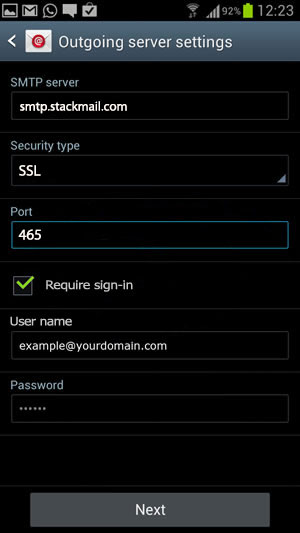
The outgoing mail server settings:
- Out going Email Server - SMTP: smtp.stackmail.com
- Security type: SSL
- Port: 465
- Require sign-in : ENABLE
- Username: Your Complete Email Address ie. example@yourdomain.co.uk
- Password: Your account password (Provided)
Select
Next
6. Account options
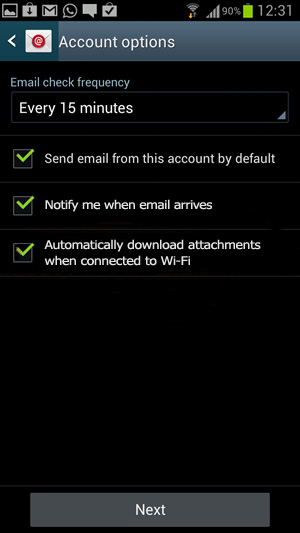
Select the options according to your requirement.
Select Next
7. Set up email
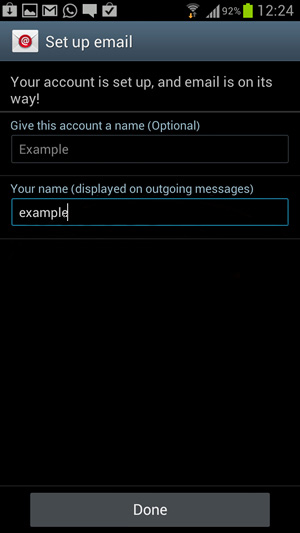
Enter the final information to your account.
- Your email address
This is the easiest way to differentiate between accounts, if you have more than one account.
- Your name as you want it to display on email messages.
Select
Done

The setup is now completed. You will now be taken to your account Inbox and you will see your emails start to appear
(if you have emails waiting for you that is).