Setting up your email account on a Nokia Lumia 822
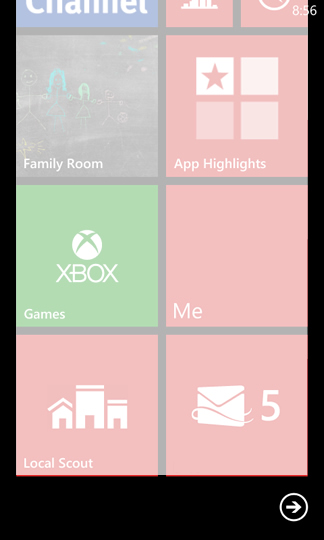
1. From the Start screen, select the
right arrow.
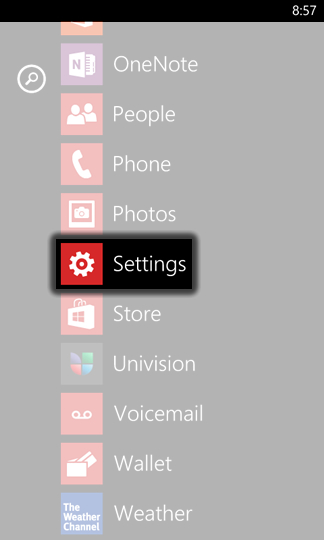
2. Select
Settings.
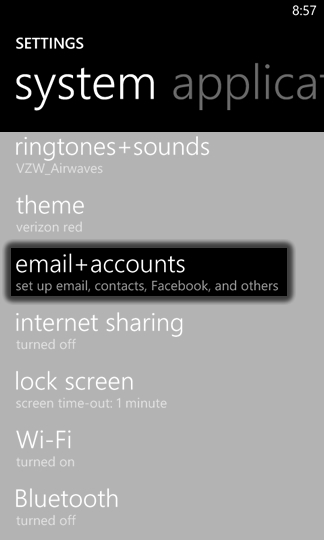
3. Select
email + accounts.
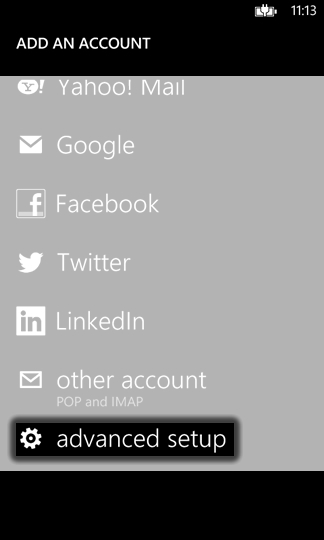
4. Select
advanced setup.
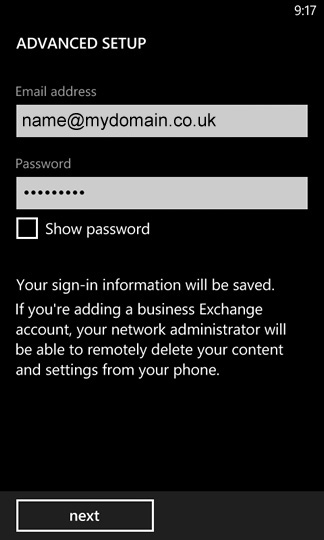
5. Enter the email account information that we provided for you into the following fields then select
next.
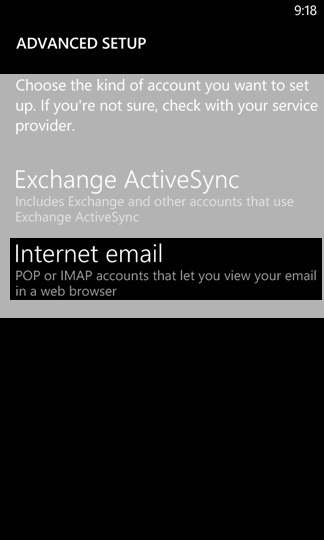
6. Select
Internet email.
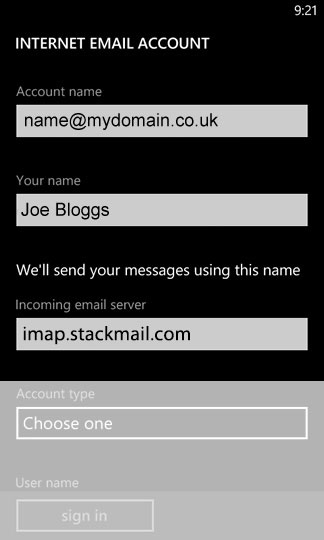
7. Enter the appropriate information into the following fields:
- Account name (This will be your full email address)
- Your name
- Incoming email server which is: imap.stackmail.com
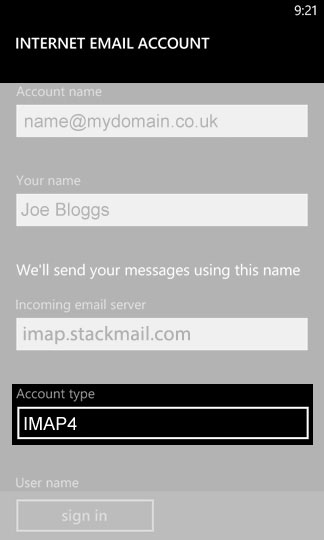
8. From the Account type field, select the
drop down menu then select the account type:
9. Enter the appropriate information into the following fields:
- User name (This will be your full email address)
- Password
- Outgoing (SMTP) email server: smtp.stackmail.com
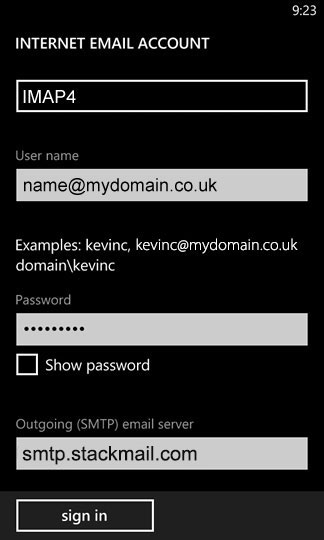
10. Please ensure the following two check boxes are ticked
- Outgoing server requires authentication
- Use the same user name and password for sending email
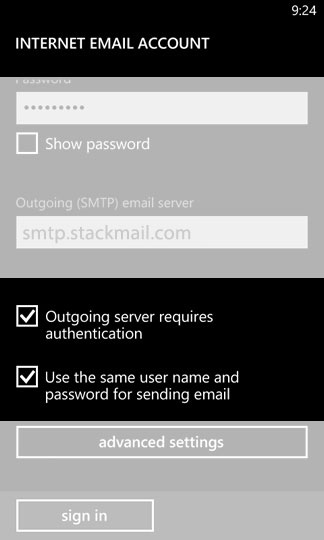
11. Select
sign in.
The setup is now completed. You will now be taken to your account Inbox and you will see your emails start to appear (if you have emails waiting for you that is).