Setting up your email account on a Google Android Phone

The following steps are required to configure email on most Google branded Android phones or tablets.

1. Locate your Settings icon within your App Drawer.
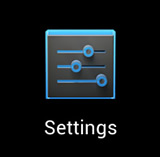
Android phones - Settings

2. Within Settings, scroll down and select Add Account.
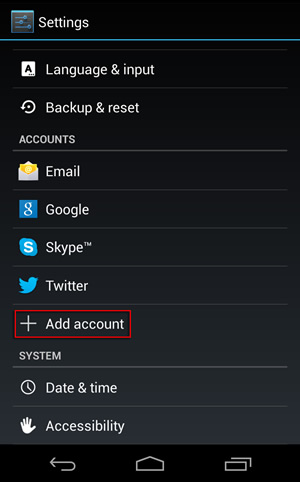
Android phones - Add Account

3. Select Email from within the Add account section.
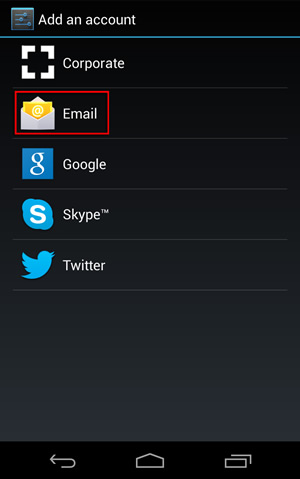
Android phones - Email

4. Enter your full email address and password.  Then, select Next
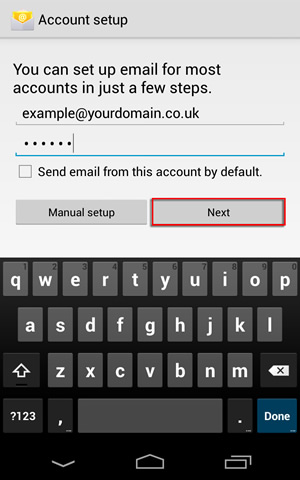
Android phones - Account Setup

5. Select IMAP on the Account setup screen
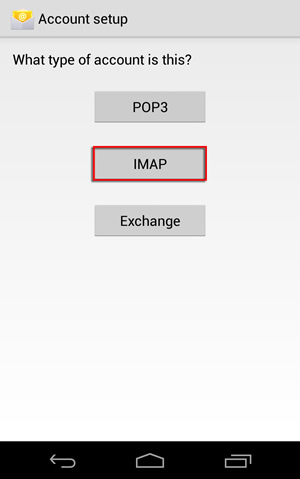
Android phones - Select IMAP

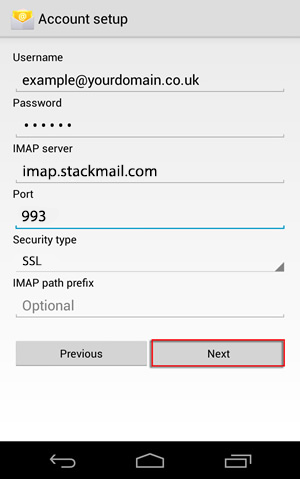
6. Enter the following information for Account setup:

  • Username: Your complete email address
  • Password:  Your email address password
  • IMAP server: imap.stackmail.com
  • Port: 993
  • Security type: SSL

Then, click Next.

Android phones - Account Settings

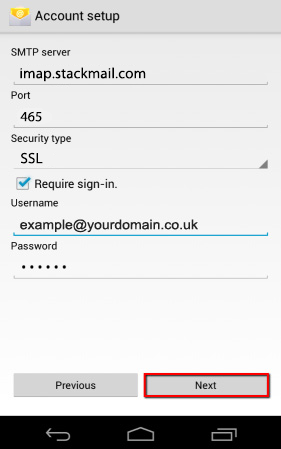
7. Enter the following information for 2nd portion of Account setup:

  • SMTP server: smtp.stackmail.com
  • Port: 465
  • Security type: SSL
  • Require sign-in: Must be check-marked
  • Username: Your complete email address
  • Password: Your email address password

Then, click Next

Android phones - SMTP Settings

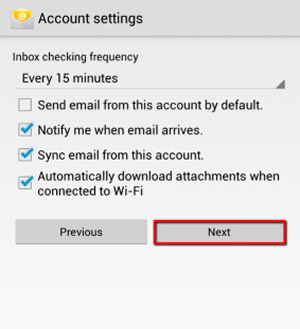
8. Click Next on this screen.

Android phones - Final Stages

9. Please name your account and edit the display name, then select Next and the setup will be complete.
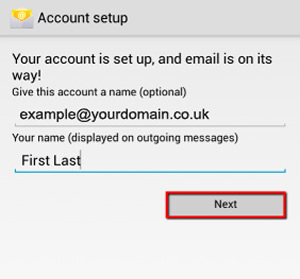
Android phones - Finish