Setting up your email account on a BlackBerry Q10/Z10
On the BlackBerry home screen, select the Blackberry Setup icon
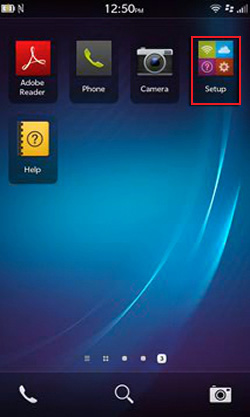
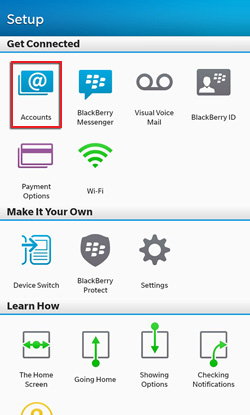
In The Setup, Select Accounts
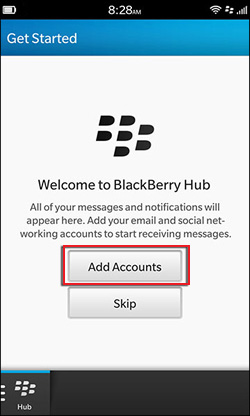
Select Add Accounts
On the Add Account page, select the Advanced button at the bottom of the page
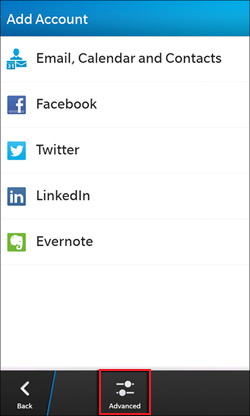
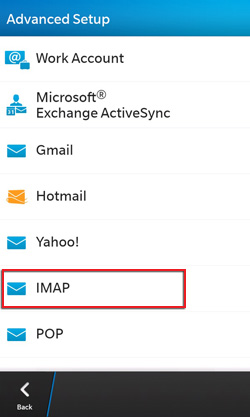
Select IMAP in the Advanced Setup
In IMAP add the following settings:
- Description: Name the account anything you like (e.g: My Business Account)
- Domain: You can leave this section <blank>
- Email Address: Your full Email address (e.g: yourname@yourdomain.co.uk)
Incoming Mail Server - IMAP Settings:
- Username: Your full Email address (e.g: yourname@yourdomain.co.uk)
- Password: Your Email password
- Server Address: imap.stackmail.com
- Server Port: 993
- Use SSL: Choose SSL
- Push: On
Outgoing Mail Server - SMTP Settings:
- Username: Your full Email address (e.g: yourname@yourdomain.co.uk)
- Password: Your Email password
- Smtp service: smtp.stackmail.com
- Server Port: 465
- Use SSL: Choose SSL
- SMTP or Outgoing Server Authentication Required: Yes (Use same settings as my icoming server)
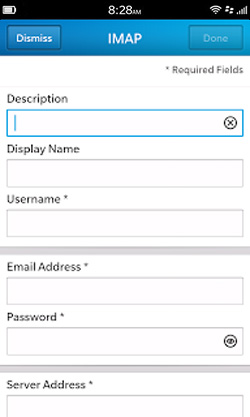
Once your details are entered click done.
Congratulations. You’ve now configured your Blackberry to send and receive emails from your domain.