


Your internet cache stores a copy of each web page you visit on your PC's hard drive, in order to speed up page loading times on sites you revisit within a day or two. This feature serves its intended purpose, but can cause problems during the design-proofing process, with clients still seeing the previous version of their site despite a new version being live. Sometimes just pressing your browser's 'Refresh' button can clear this problem.
If the browser refresh doesn't work then you will need to manually clear these files.
We suggest that each time you are asked to review a change made to your web site, you clear your internet cache beforehand, to avoid confusion.
1. First navigate away from any page suspected to be cached.
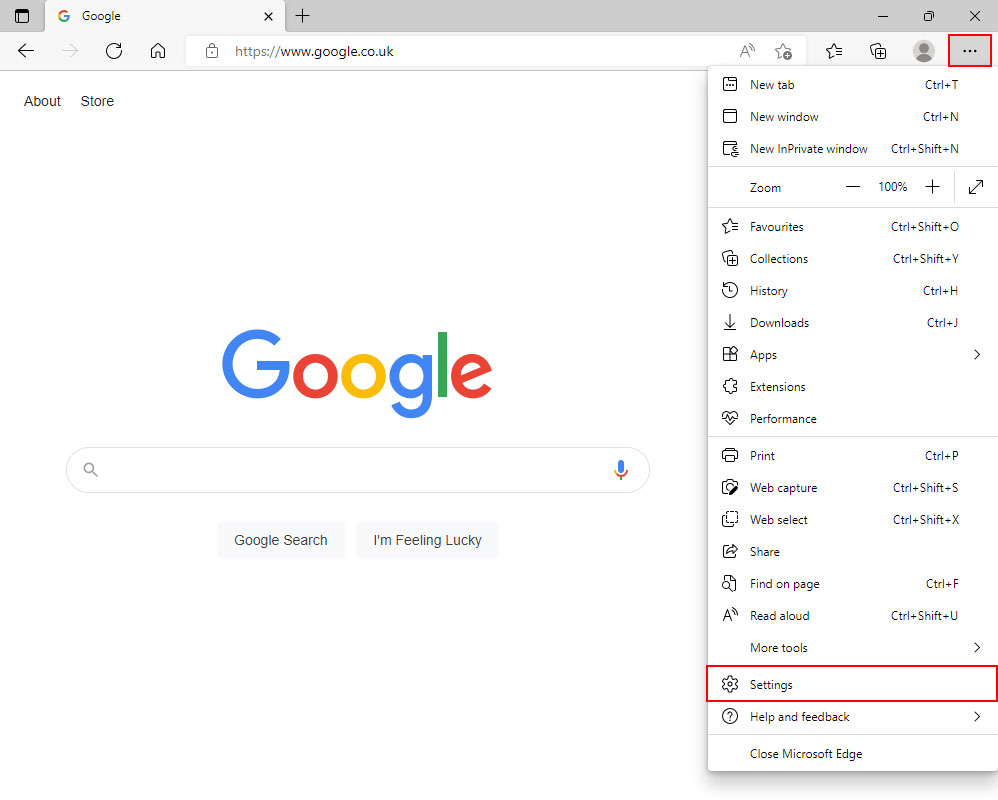
2. In the top right corner of the browser, click the Hub icon (looks like three horizontal dots).
3. Then click the 'Settings' button at the bottom of the menu list that appeared.
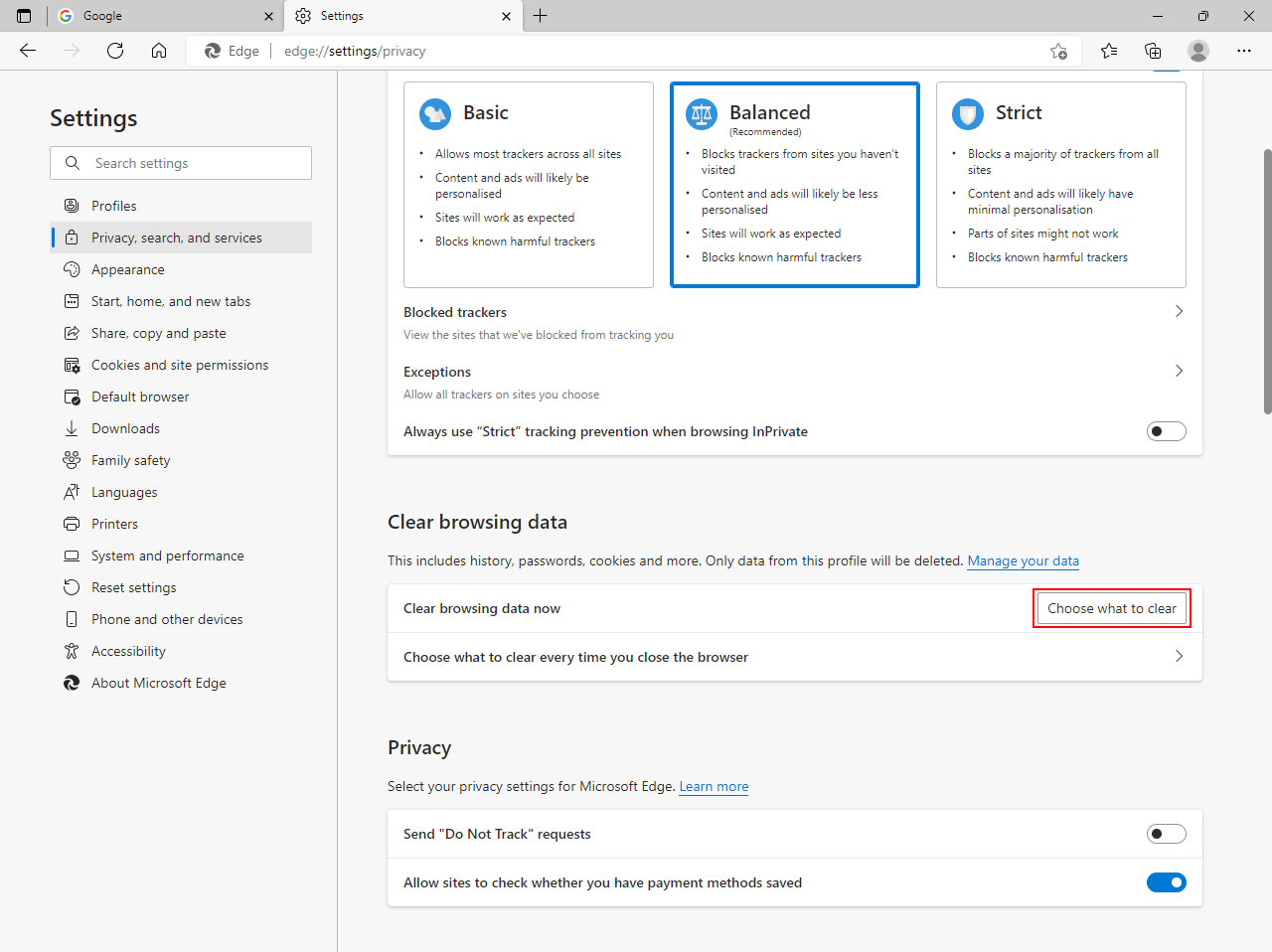
4. Now click the Prvacy, Search and Services option in the left hand menu, then click the 'Choose what to clear' button under the 'Clear browsing data' heading.
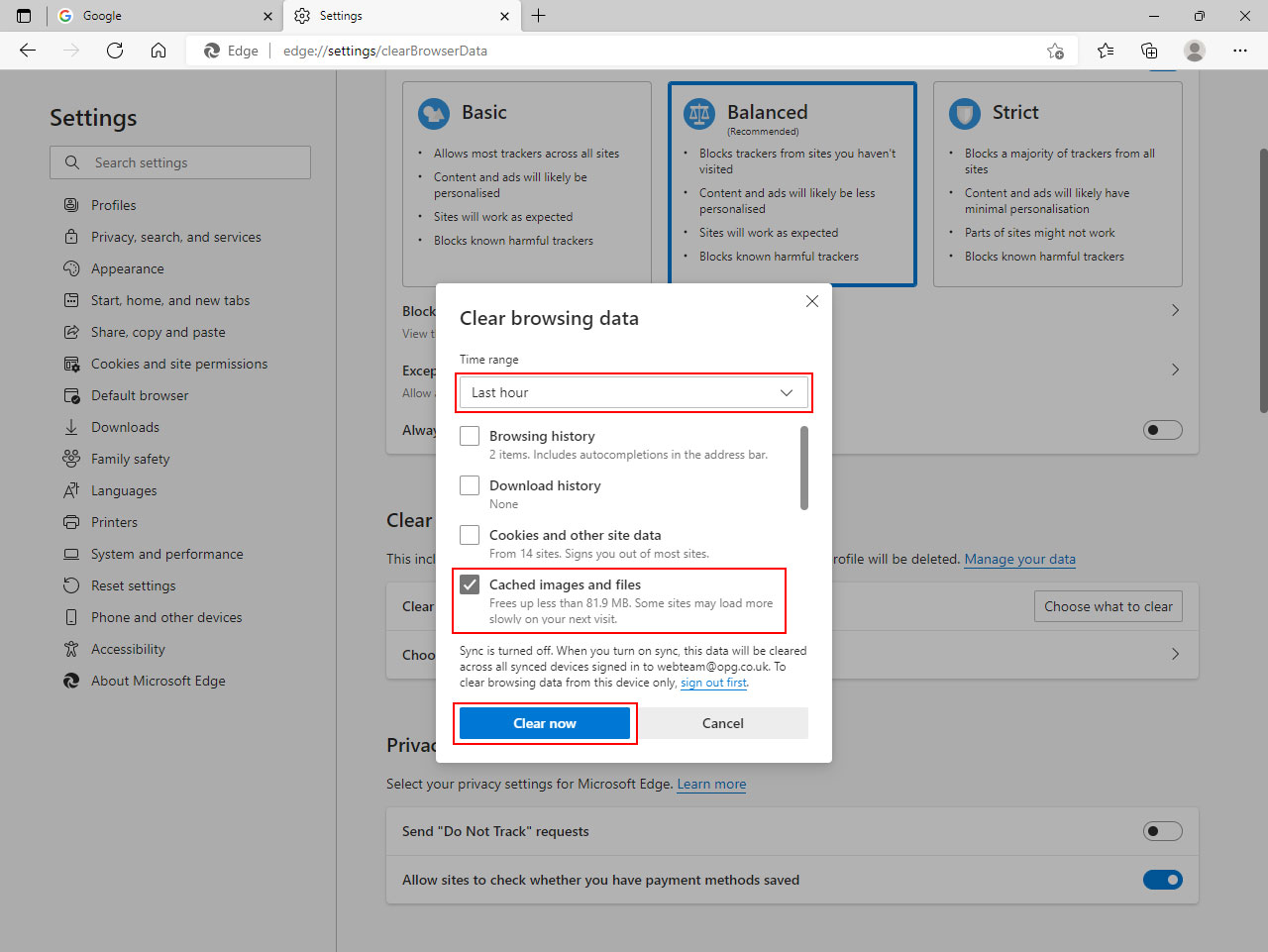
5. The next screen will be a popup called Clear Browsing Data.
On this pop-up screen you will first see a Time Range with a drop down menu with preset times in it, select the time period you want to remove the browers cache for.
You will then see a list of options to clear, you just need to select the 'Cached images and files' option. Next click the 'Clear Now' button.
6. Once the cache on your computer has been cleared the pop-up window will close.
7. Now that the cache has been cleared, close the settings tab and navigate to the page you were previously viewing. The page will now download the latest version for you to view.
If the above steps do not fix the problem, it is possible that the files are being cached by a web server in-between your computer and our server. Please call the webteam on 01253 608013 to discuss further steps we can take to temporarily work around the problem.